
Turn Large BMP Files into Easy-to-Use PNG Images
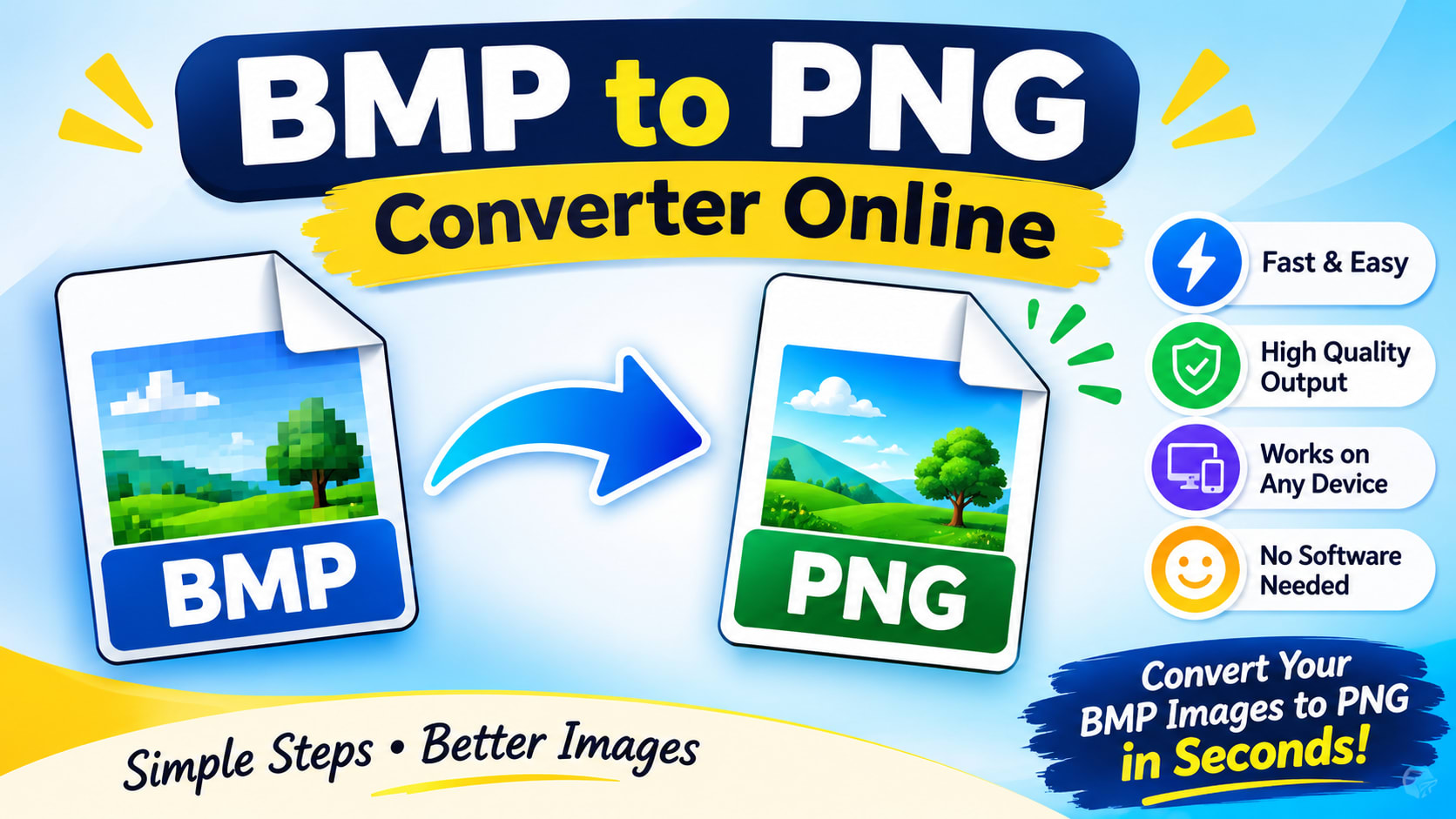
If you have ever tried to email a BMP file, you know the frustration. A single screenshot can weigh 20 MB or more, upload forms reject it, and some apps will not even display it properly. A BMP to PNG Converter Online solves this in a few clicks, shrinking the file while keeping every pixel intact. This guide explains why BMP files get so large, how to convert them safely, and what to check before you trust any converter with your images. Why Are BMP Files So Large? BMP (bitmap) is one of the oldest image formats, created for early versions of Windows. It usually stores image data with little or no compression. Every pixel is written out in full, so file size grows quickly with resolution. A simple calculation shows the effect. A 24-bit image measuring 4000 × 3000 pixels needs roughly 36 MB as an uncompressed BMP. The same image saved as PNG often comes in at a fraction of that, depending on how much detail it contains. PNG uses lossless compression. That means it packs the data more efficiently without discarding anything, so the converted image looks identical to the original. When Should You Use a BMP to PNG Converter Online? An online tool makes sense in several everyday situations: Uploading to a website or form that rejects BMP files or sets a low size limit. Sharing by email or messaging apps, where large attachments fail or get compressed badly. Saving storage space on a laptop, phone, or cloud drive full of old screenshots and scans. Preparing graphics for design or presentations, where PNG is widely accepted and supports transparency. Converting on a device without image software, such as a Chromebook or a shared computer. If you only need to convert once or twice, a browser tool is usually faster than installing software. How to Choose a Safe BMP to PNG Converter Online Not all converters are equal, and you are handing over your image when you upload it. Look for these signs of a trustworthy service: HTTPS connection. The address should start with https and show a padlock. A clear privacy policy that says how long uploaded files are stored. Many reputable tools delete files within hours. No required sign-up for basic conversions. Transparent limits on file size and daily use. No surprise downloads. If a site pushes you to install software just to convert one image, close the tab. For sensitive material such as ID scans, medical images, or confidential business documents, avoid uploading altogether. Use offline software instead. Tips for Getting the Best Results A few habits make conversions smoother: Check the file size limit first. If your BMP is larger than the cap, resize it or use offline software. Use a stable connection. Large uploads can fail on weak Wi-Fi. Don’t expect quality to change. PNG preserves the BMP exactly. It will not sharpen or repair a poor image. Rename files clearly. Add a suffix like “-web” so you can tell the PNG from the original. Resize if the image is oversized. If the final use is a webpage, scaling the dimensions down saves more space than any format change. Common Mistakes to Avoid Deleting the BMP too early. Keep it until you have confirmed the PNG opens and looks correct. Converting a screenshot to JPG instead. JPG blurs text and sharp edges. PNG keeps them crisp. Assuming transparency will appear automatically. A converted PNG supports transparency, but the background stays solid until you remove it in an editor. Using unknown sites for private files. Convenience is not worth the privacy risk. Final Thoughts A BMP to PNG converter online is one of the quickest ways to turn bulky bitmap files into images that are easy to store, upload, and share. You keep full visual quality, gain better compatibility, and often cut file size dramatically. Choose a service with clear privacy practices, check the result before deleting your original, and switch to offline software for large batches or sensitive images. With those steps in mind, the whole process takes only a minute or two.